
PicoKeyApp now brings passkey and authentication activity to your desktop with notifications for physical confirmation requests, credential creation, and authentication results. See when a site is waiting for you to press your key’s button, then get feedback when the key completes its operation—all without keeping the PicoKeyApp window in view.
See which site is asking for confirmation
When your key reports a user-presence request, PicoKeyApp shows a desktop prompt. When the device supplies the website domain and the requested operation, the notification includes those details so you can check the request before confirming it.
In this example, webauthn.io is requesting authentication. The notification tells you what to do next: press the button on your key to confirm.
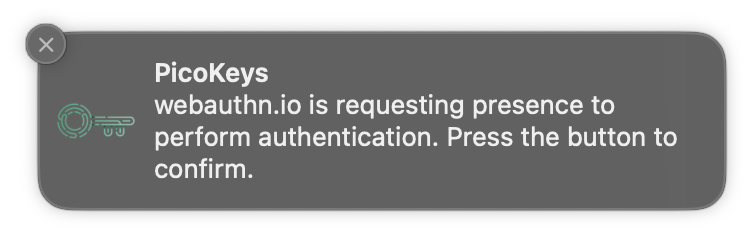
A physical confirmation request displayed as a native macOS notification.
Confirmation happens on the key, using its button as usual. The notification gives you context for that action, which is useful when you have several browser tabs or applications open.
Get feedback when the key completes an operation
After the key reports a successful authentication, PicoKeyApp can display a completion message naming the website involved.
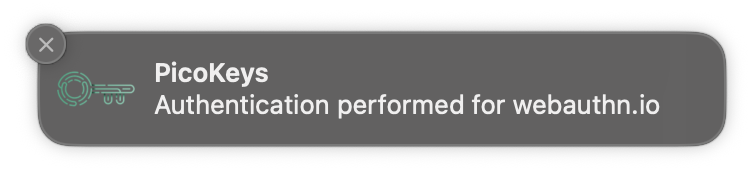
The key reports that it performed authentication for webauthn.io.
The notification system covers:
- Physical confirmation requests: prompts to press the key’s button for credential creation or authentication, with the website name when available.
- Passkey creation: feedback when the key reports that a credential was created, or that creation failed.
- Authentication: feedback when the key reports a completed authentication involving user presence, or an authentication failure.
These messages report the key’s operation. The website handles the rest of the sign-in flow, including whether to accept the authentication result.
Native notifications on Windows, macOS, and Linux
PicoKeyApp uses each platform’s desktop notification system. Notifications follow the appearance and behavior of your operating system, including its notification permissions and available controls for banners, history, and sound.
The screenshots above show macOS; Windows and Linux use their own desktop styling.
With PicoKeyApp open, the desktop app handles device notifications directly. Enable PicoKey Agent for background monitoring when the main app is closed.
Enable notifications
- Pico Fido must run version 8.2 at least.
- Open PicoKeyApp and select App in the sidebar.
- Under Application Settings, turn on Enable Notifications.
- Allow notifications if your operating system asks for permission, and choose your preferred notification style in its settings.
For background operation, turn on Enable Agent in the Agent section of the same page. You can turn Enable Notifications off at any time; the preference applies to both the desktop app and the agent.
On Linux, the notify-send command and a desktop notification service must be available. On every platform, your system’s notification and interruption settings still determine when messages appear.
Notifications require a compatible device and firmware that report the corresponding events. The details shown depend on the information supplied by the key.